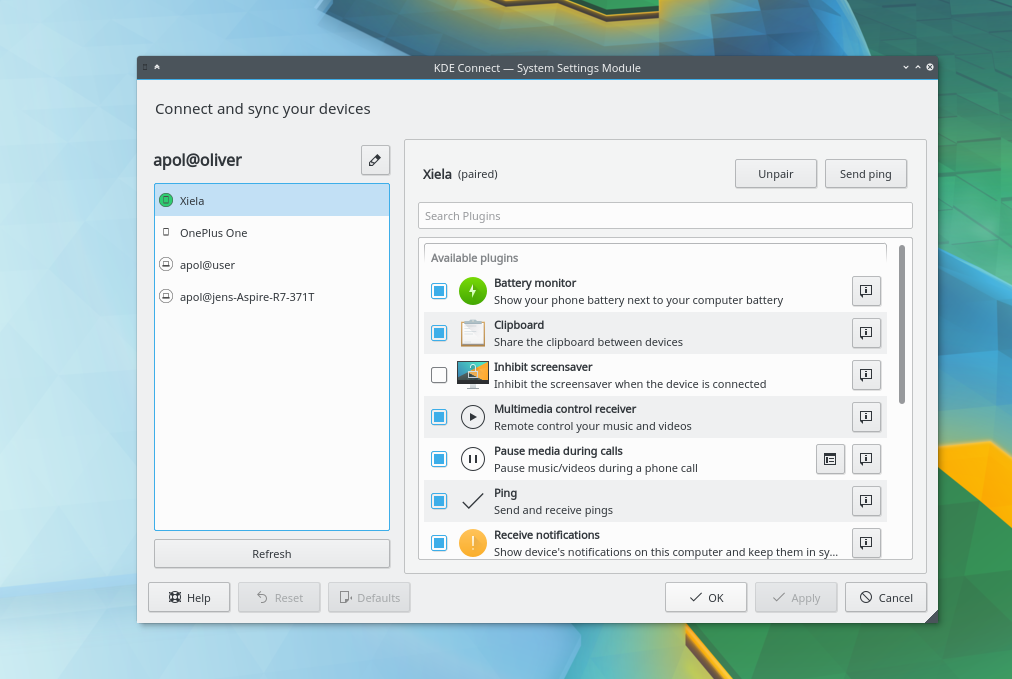
KDE Connect Mac Android setup makes it easy to connect an Android phone with a Mac computer. If you use Android with macOS, transferring files, sharing notifications, or controlling your computer can sometimes be difficult. KDE Connect solves this problem by creating a wireless bridge between your Android device and your Mac.
Fortunately, there is a powerful free tool that solves this problem — KDE Connect.
KDE Connect allows your Android device and Mac to communicate wirelessly, enabling features like file transfers, clipboard sharing, remote control, and notification syncing.
In this guide, you will learn:
- What KDE Connect is
- How to download KDE Connect for Mac and Android
- How to connect your devices
- The most useful KDE Connect features
- Tips to make it work perfectly
By the end of this guide, you’ll have a fully connected Android + Mac setup without cables or complicated software.
What is KDE Connect?
KDE Connect is an open-source application designed to integrate your smartphone and computer.
It works by connecting devices over the same Wi-Fi network, allowing them to communicate securely.
Unlike cloud-based tools, KDE Connect works directly between devices, which means:
✔ Faster file transfers
✔ Better privacy
✔ No internet dependency
✔ Completely free to use
Originally developed for Linux desktops, KDE Connect is now available for Android, macOS, Windows, and Linux.
Download KDE Connect for Android and Mac
Before setting up KDE Connect, you must install it on both devices.The KDE Connect Mac Android connection works over the same Wi-Fi network, allowing both devices to communicate instantly without cables.
Download KDE Connect for Android
You can install the Android app from the Google Play Store.
👉 Download KDE Connect for Android:
https://play.google.com/store/apps/details?id=org.kde.kdeconnect_tp
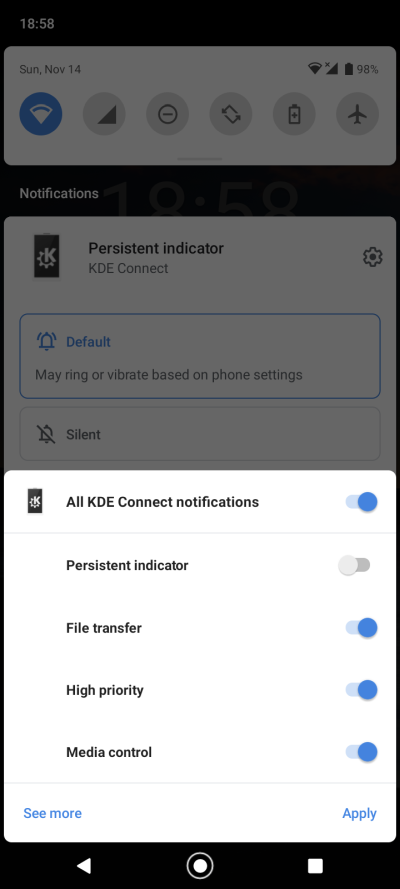
After installing the app, make sure to grant permissions such as:
- Notification access
- Storage access
- Network access
These permissions allow KDE Connect to enable all its features.
Download KDE Connect for macOS
The macOS version is available from the official KDE website.
👉 Download KDE Connect for Mac:
https://kdeconnect.kde.org/download.html
After downloading:
- Open the
.dmgfile - Drag KDE Connect into the Applications folder
- Launch the application
Your Mac is now ready to connect with Android.
How to Connect Android with Mac Using KDE Connect
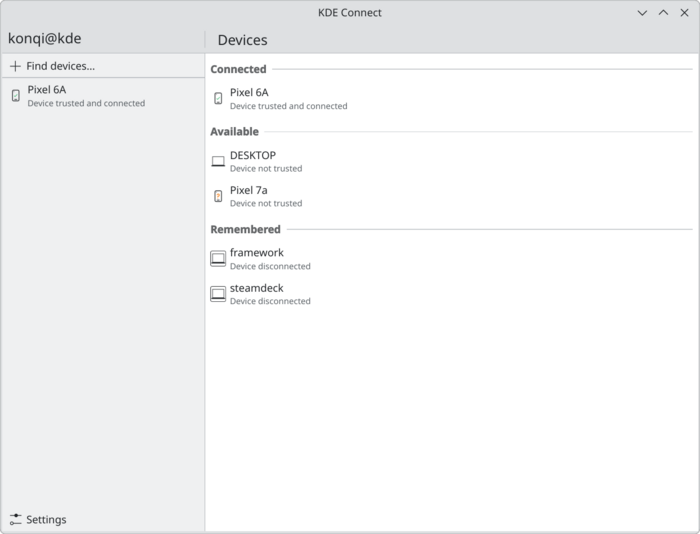
Setting up KDE Connect only takes a few minutes.
Follow these steps carefully.
Step 1: Install KDE Connect
Install the app on both:
- Your Android phone
- Your Mac computer
Open the app on both devices.
Step 2: Connect to the Same Wi-Fi
Both devices must be connected to the same Wi-Fi network.
KDE Connect cannot detect devices on different networks.
Step 3: Detect Your Mac
Open the KDE Connect app on your Android phone.
You will see your Mac device appear automatically.
Step 4: Send Pair Request
Tap your Mac device name and press Pair.
Your Mac will show a pair request notification.
Click Accept.
Step 5: Start Using KDE Connect
Once paired, you can start using KDE Connect features immediately.
Your Android phone and Mac are now connected.
7 Best Features of KDE Connect
KDE Connect offers many useful features that make working between devices much easier.One of the biggest advantages of the KDE Connect Mac Android setup is the ability to transfer files wirelessly between devices.
Here are the 7 most powerful features.
1. Wireless File Transfer
You can send files between your Android phone and Mac instantly.
Transfer:
- Photos
- Videos
- Documents
- Music files
All without using cables or USB drives.
2. Notification Sync
KDE Connect allows you to receive Android notifications directly on your Mac.
This means you can see messages, alerts, and app notifications without checking your phone.
3. Shared Clipboard
You can copy text on one device and paste it on another.
Example:
- Copy a link on your Android phone
- Paste it directly into your Mac browser
This feature is extremely useful for productivity.
4. Remote Mouse and Keyboard
KDE Connect can turn your Android phone into a remote mouse and keyboard.
This is great for:
- Watching movies from a distance
- Controlling presentations
- Managing your computer remotely
5. Media Playback Control
You can control music or videos playing on your Mac directly from your Android phone.
You can:
- Pause music
- Skip tracks
- Adjust volume
All from your phone.
6. Phone Battery Status
KDE Connect also shows your phone’s battery level on your Mac.
This helps you know when your phone needs charging.
7. Run Commands on Your Computer
Advanced users can run custom commands on their Mac from Android.
For example:
- Lock computer
- Open applications
- Run scripts
This makes KDE Connect a powerful productivity tool.
Is KDE Connect Safe?
Yes, KDE Connect is very safe to use.
Here’s why:
✔ It is open-source software
✔ Data stays inside your local network
✔ No cloud servers are required
✔ Devices must be paired manually
Because of this, KDE Connect is trusted by developers and privacy-conscious users.
Common KDE Connect Issues and Fixes
Sometimes KDE Connect may not detect your device.
Try these fixes:
Devices Not Showing
Make sure both devices are connected to the same Wi-Fi network.
Pairing Not Working
Restart KDE Connect on both devices.
You may also need to allow KDE Connect through the Mac firewall.
File Transfer Not Working
Ensure the Android app has storage permission enabled.
Final Thoughts
If you use Android with macOS, KDE Connect is one of the best tools available to bridge the gap between the two platforms.Overall, the KDE Connect Mac Android integration is one of the best solutions for users who want their Android phone and Mac to work together smoothly.
With features like wireless file transfer, shared clipboard, remote control, and notification syncing, it makes working across devices incredibly easy.
Best of all, KDE Connect is free, open-source, and privacy friendly.
If you want a smoother Android + Mac workflow, installing KDE Connect is definitely worth it.
If you frequently use Android with macOS, you may also want to read our guide on how to transfer files from Android to Mac