Run Windows software on Mac without Bootcamp, Parallels, or paid tools by using free and proven methods that work on modern macOS systems.
Run Windows software on Mac even if it says “This app is only for Windows.”
Have you ever downloaded a software on your Mac and realized it only works on Windows?
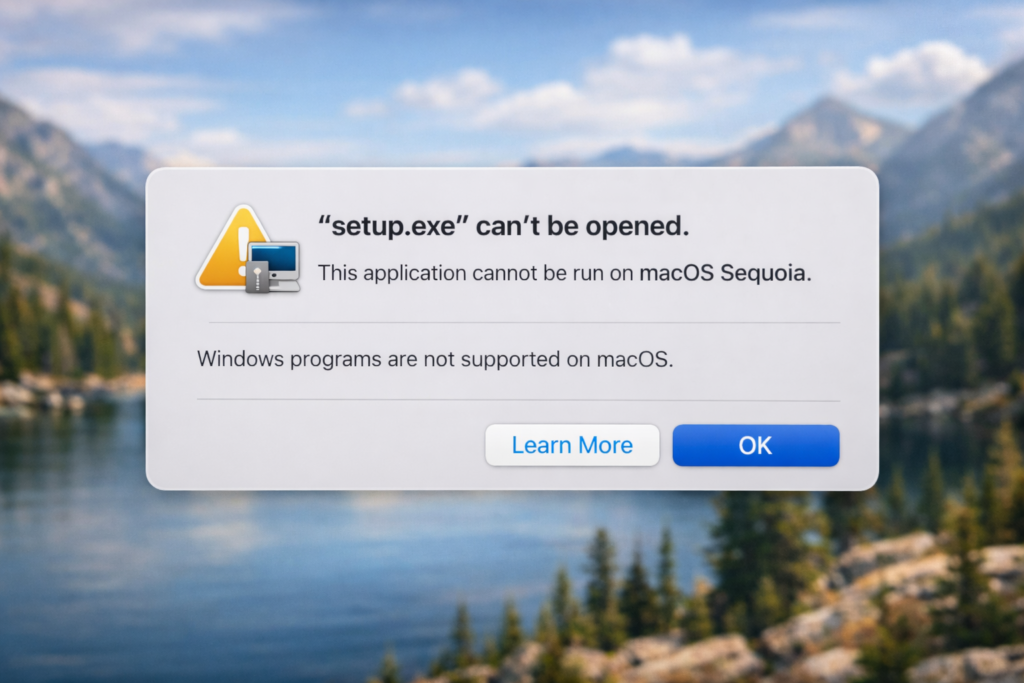
You double-click the file and macOS shows an error like:
“This file cannot be opened because macOS cannot run Windows applications.”
Many users simply search:
- how to run software on mac
- windows software on mac
- setup file not opening on mac
- this app is only for windows mac
If you are facing the same problem — this guide is for you.
In this tutorial, you will learn free and working ways to run Windows software (.exe files) on macOS, even on the latest macOS Sequoia 15.7.3.
Why Some Software Does Not Run on Mac
Most Windows software uses .exe files.
macOS uses a different system and does not understand Windows programs by default. That’s why:
- Setup files don’t open
- Installers fail
- Apps show compatibility errors
But don’t worry — you can still run them using special tools.
Method 1: Best Free Ways to Run Windows Software on Mac using Wine (Free)
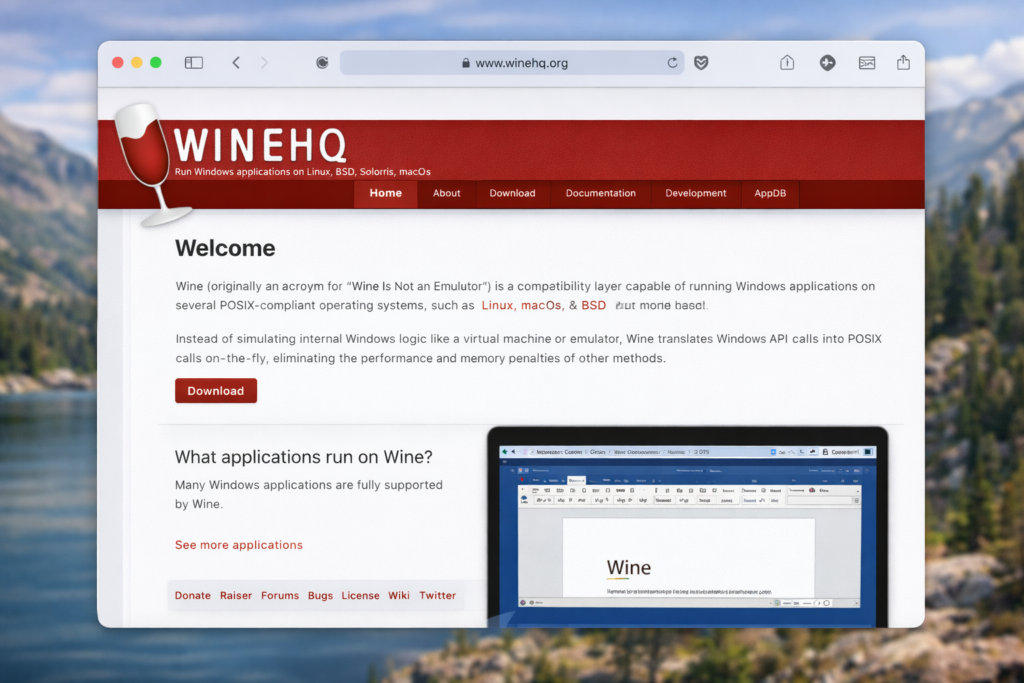
Wine is a free tool that allows Windows programs to run directly on macOS without installing Windows.
Step 1 – Install Wine
- Visit Wine official website
- Download macOS version
- Install it like a normal app
Link to the Wine Version is available Here.If Possible Only Search for the Latest Stable Version of the current Wine.
Step 2 – Open Your Software (.exe file)
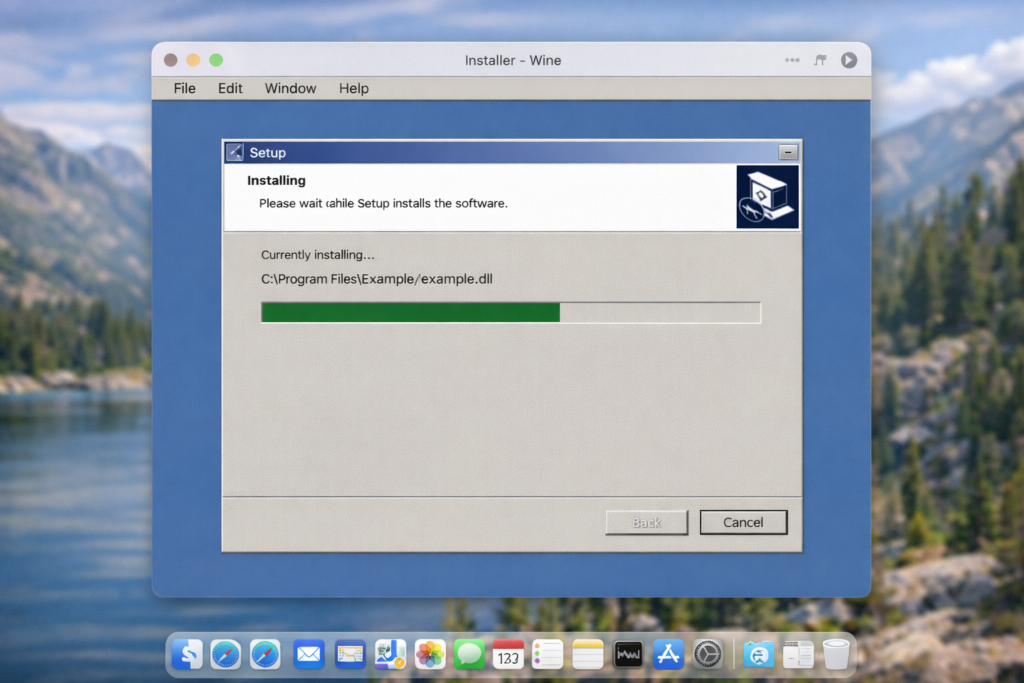
- Right-click the
.exefile - Choose Open With → Wine
The software installer will start.
Best for:
- Small tools
- Utility software
- Old Windows programs
- Lightweight apps
Method 2: Run Windows Software Easily Using PlayOnMac
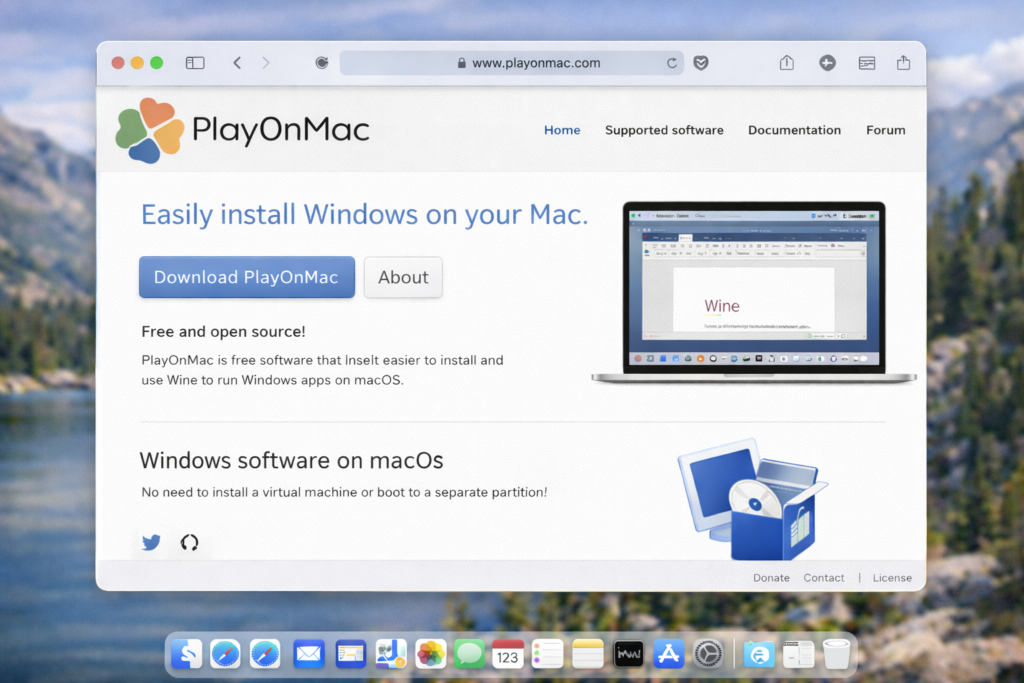
PlayOnMac is a beginner-friendly interface built on Wine.
Step 1 – Install PlayOnMac
Step 2 – Install Your Software
- Open PlayOnMac(Download Link is Attached)
- Click Install a program
- Choose Install a non-listed program
- Select your
.exefile
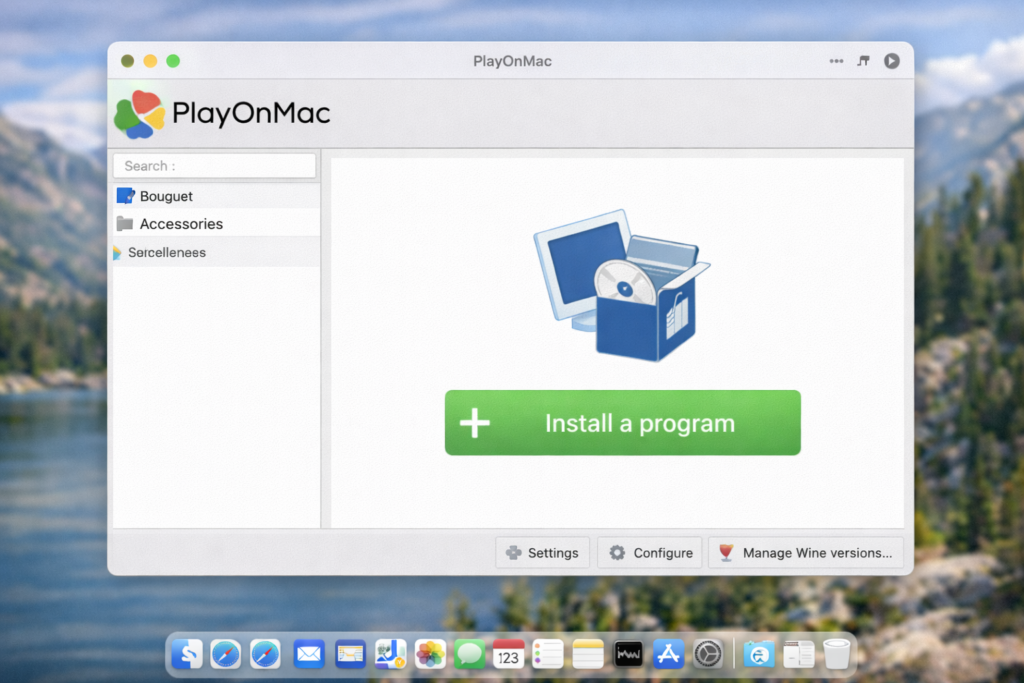
PlayOnMac automatically handles many compatibility settings.
Best for:
- Beginners
- Games
- Normal Windows software
- No technical setup
Method 3: Run Any Windows Software Using UTM (Full Windows on Mac)
Some software is too heavy or modern to run using Wine.
In that case, install Windows itself using UTM Virtual Machine.
Steps:
- Install UTM
- Create Windows virtual machine
- Install Windows
- Open Windows
- Run any
.exefile normally
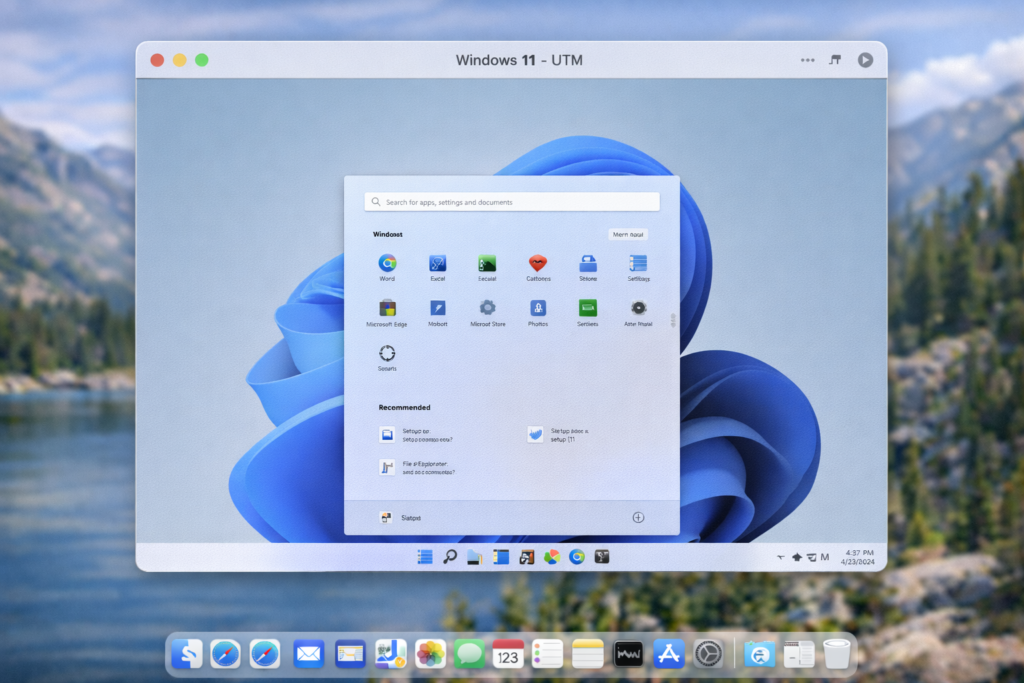
Best for:
- Accounting software
- Engineering tools
- Business applications
- Latest Windows programs
Which Method Should You Choose?
| Your Need | Best Option |
|---|---|
| Simple software | Wine |
| Easy setup | PlayOnMac |
| Heavy programs | UTM |
| Full Windows apps | UTM |
Common Problems & Fixes
Software opens but crashes → Try PlayOnMac or UTM
DLL missing error → Use PlayOnMac
Black screen → Change display mode in Wine
Software doesn’t install → Use UTM
People Also Ask
Can I run Windows software on Mac?
Yes. Even if software is made only for Windows, you can run it on Mac using Wine, PlayOnMac, or by installing Windows using UTM.
Why does my software not open on Mac?
Because the software is built for Windows (.exe file) and macOS does not support it directly.
I downloaded a setup file but it does not work on Mac
That setup file is a Windows installer. Follow this guide to run it using Wine or Windows virtual machine.
How to install Windows-only apps on Mac?
- Use Wine for small apps
- Use PlayOnMac for easy installation
- Use UTM for heavy software
How to Run Windows Software on Mac Using Free Tools
Use any of the three methods explained above to bypass this limitation.
Final Words
macOS does not support Windows software by default — but that does NOT mean you are stuck.
With the right free tools, you can run almost any Windows program on your Mac.If you also need to share files between devices, check our guide on transferring files between Android and Mac for free.
For Android-related issues, you may also find our Android app keeps crashing guide helpful.
On AndroidWithMac.com, we’ll also be creating dedicated step-by-step guides for popular Windows and Android software — showing you exactly how to install and run each one on macOS. So even if a specific app doesn’t work for you today, a complete guide for it is coming soon.
For more helpful guides like this, visit:
Where we make Windows, Android, and Mac work together.
Pingback: Run Android Apps on Mac Without Emulator – Free Guide 2026