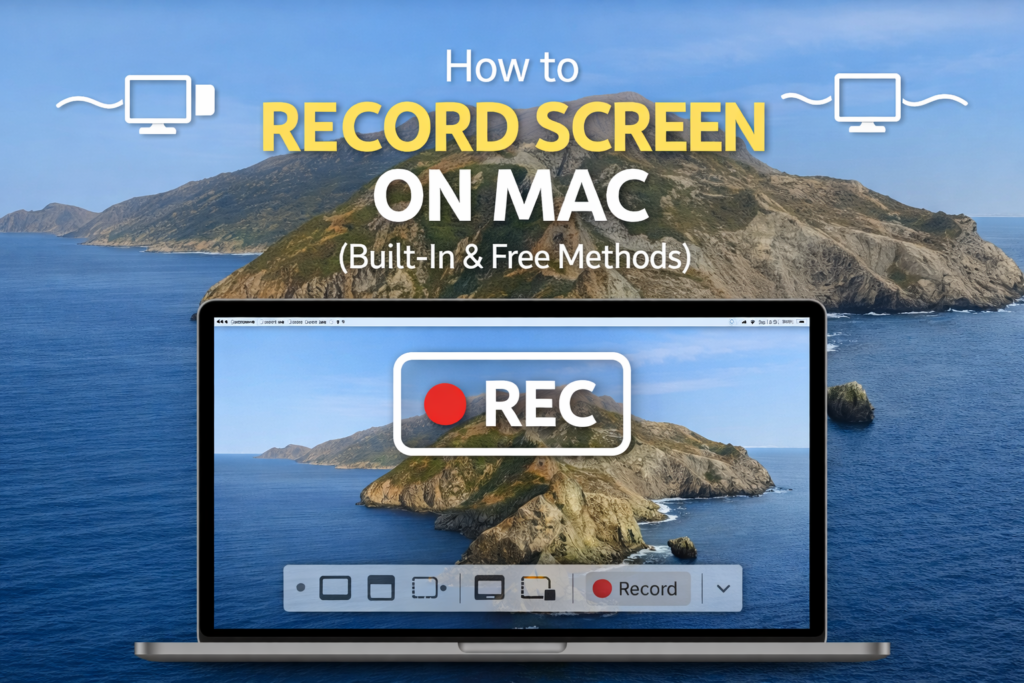
Recording your screen on Mac is useful for tutorials, presentations, online classes, and sharing instructions. macOS includes built-in tools that allow you to record screen on Mac for free, without installing any third-party software.
In this guide, you’ll learn how to record screen on Mac using built-in tools, when to use each method, and what to do if screen recording doesn’t work.also will share some free tools that you can use for screen recording.
Method 1: Record Screen on Mac Using Screenshot Toolbar (Best & Easiest)
macOS includes a built-in screen recording tool called Screenshot Toolbar, which works on macOS Mojave and newer versions and help record screen on Mac.
Steps to record screen using Screenshot Toolbar:
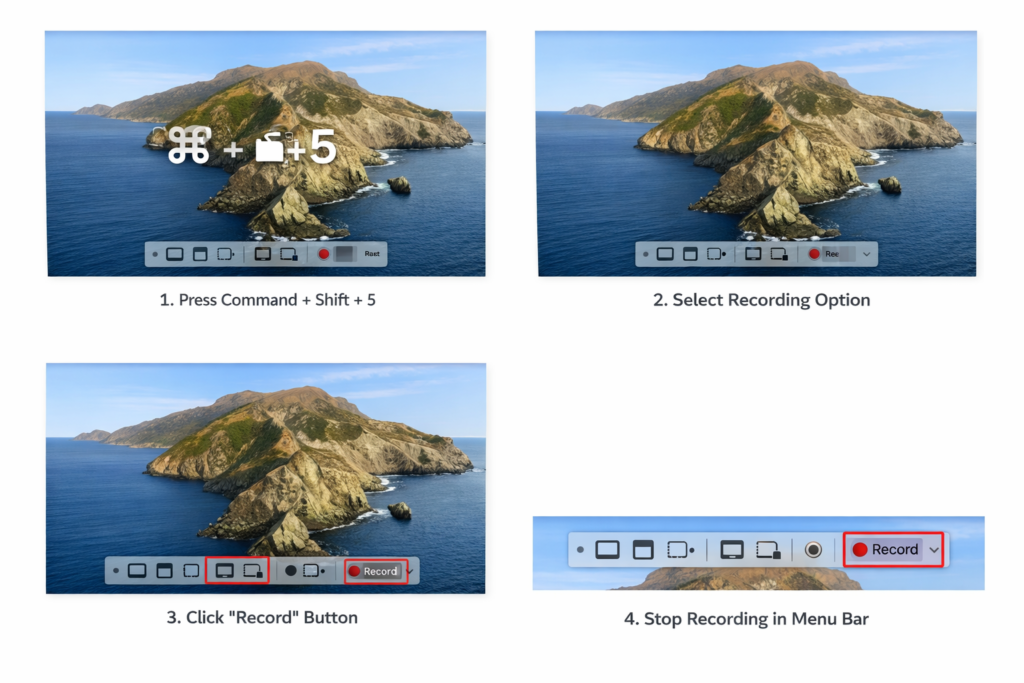
- Press Command (⌘) + Shift + 5
- The Screenshot Toolbar will appear at the bottom of the screen
- Choose:
- Record Entire Screen, or
- Record Selected Portion
- Click Record
- To stop recording, click the Stop button in the menu bar
Your recording is automatically saved to your desktop by default.
Why this method is best:
- No installation required
- Free and built into macOS
- Works smoothly on Intel and Apple Silicon Macs
- Ideal for most users
Method 2: Free Third-Party Screen Recording Apps for Mac
While macOS has built-in screen recording tools (Screenshot Toolbar and QuickTime), you may want more features like webcam overlay, voice narration, annotations, or professional layouts.which helps in record screen on Mac.Here are the best free options:
1. OBS Studio (Open Broadcaster Software)
Official site: https://obsproject.com/
Key Features
- Completely free and open-source
- Record screen + webcam + microphone
- Custom scenes & layouts
- Live streaming support
- High-quality recordings
Best For
- Tutorials
- Professional recordings
- Game capture + screen demos
Pros
✔ Very powerful
✔ No watermark
✔ Cross-platform (Mac, Windows, Linux)
✔ Lots of tutorials available
Cons
❌ Slightly steep learning curve for beginners
🆓 2. VLC Media Player
Official site: https://www.videolan.org/vlc/
Key Features
- Well-known media player with a hidden screen recorder
- Lightweight
- No watermark
Best For
- Simple screen recording without editing
How to record using VLC
- Open VLC → File → Open Capture Device
- Select Screen
- Choose frame rate and hit Play → Record
Pros
✔ Lightweight
✔ Free & open-source
✔ Good for occasional recording
Cons
❌ Not designed primarily for screen recording
❌ Limited controls compared to dedicated tools
🆓 3. QuickTime Player (Built-in but worth highlighting)
Already included in macOS, but many people don’t know it can record audio + screen.
Good for
- Simple screen capture
- Voiceover narration
- Quick demos
Pros
✔ No download needed
✔ Default Apple app
✔ Very easy
Cons
❌ Limited advanced features
❌ Doesn’t record system audio without helpers
🆓 4. Kap
Official site: https://getkap.co/
Key Features
- Clean, modern UI
- Simple screen + GIF recording
- Export to GIF, MP4, WebM
Best For
- Quick clips
- Tutorials for websites / social media
Pros
✔ Very easy to use
✔ Free and open-source
✔ Exports to multiple formats
Cons
❌ Fewer options for long videos
🆓 5. Screenflick (Free Version)
Official site: https://www.araelium.com/screenflick
Key Features
- Screen + webcam + audio
- Built-in countdown
- Timer recording
What’s Free
- Watermark only if you record more than 30 seconds (only for free demo)
Pros
✔ Simple UI
✔ Good for quick recordings
Cons
❌ Watermark after 30s in free mode
🆓 6. SimpleScreenRecorder (via Homebrew / open-source)
Not an official Mac binary, but can be installed via open-source methods.
Best For
- Power users comfortable with tools like Homebrew
🆓 7. Monosnap
Official site: https://monosnap.com/
Key Features
- Screen + webcam + screenshot
- Annotate while recording
- Cloud upload
Free Tier
- Basic recording without watermarks
Pros
✔ Annotation tools
✔ Good for collaboration
Cons
❌ Some features behind paid tier
Method 3: Record Screen With Audio on Mac
By default, macOS screen recording tools capture system visuals, but audio recording depends on your setup.
What you can record:
- ✅ Microphone audio (voice)
- ❌ System audio (by default)
To record system audio, you need additional tools like virtual audio drivers. For basic tutorials or voice narration, using the microphone option is enough.
Where Are Screen Recordings Saved on Mac?
By default:
- Screenshot Toolbar recordings → Desktop
- QuickTime recordings → Location you choose when saving
You can change the save location from Screenshot Toolbar → Options.
Screen Recording Not Working on Mac? (Common Fixes)
If screen recording fails or doesn’t start, try these fixes:
1. Check Screen Recording Permission
- Go to System Settings → Privacy & Security
- Open Screen Recording
- Make sure the app you’re using is allowed
- Restart the app
2. Restart Your Mac
Temporary system glitches can block recording permissions.
3. Update macOS
Older versions may contain bugs affecting screen capture.
When Should You Use Third-Party Screen Recorders?
Built-in tools are enough for:
- Tutorials
- Presentations
- App demonstrations
- Basic recordings
Third-party tools are only needed if you require:
- Advanced editing
- Annotations while recording
- Multiple audio sources
For most users, macOS built-in screen recording is more than enough.
Final Advice
If you’re wondering how to record screen on Mac, start with Command + Shift + 5. It’s fast, free, and reliable. Only consider external tools if you have very specific needs.
Screen recording on macOS is simple once you know where to look—and Apple has already done most of the work for you.
FAQ
How do I record my screen on Mac for free?
You can record your screen on Mac for free using the Screenshot Toolbar (Command + Shift + 5) or QuickTime Player.
Can I record screen with audio on Mac?
Yes, you can record microphone audio using built-in tools. System audio requires additional setup.
Where are screen recordings saved on Mac?
By default, recordings are saved to the Desktop, but you can change the save location in options.
If you want to mirror your phone screen, see our guide on mirroring Android screen on Mac.
Pingback: 10 Best Open Source Tools for Mac Users (Free & Powerful)