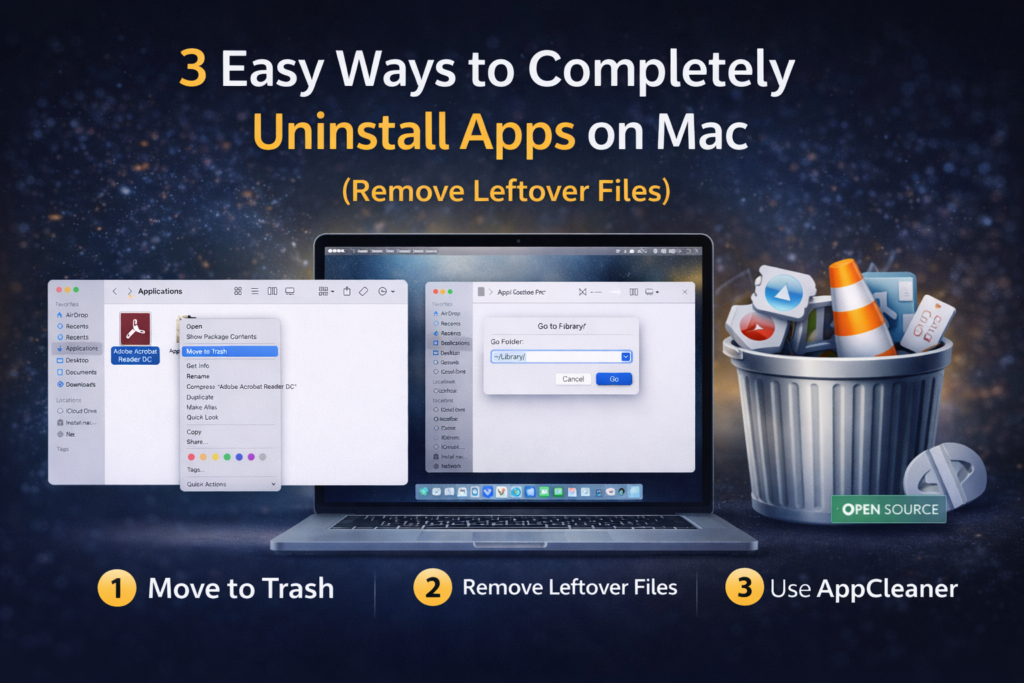
If you want to uninstall apps on Mac properly, simply dragging them to the Trash is not enough. Many apps leave behind hidden cache files, preferences, and background services that continue taking up space.
In this guide, you’ll learn how to completely uninstall apps on Mac, remove leftover files safely, and use open-source app uninstaller tools that make the process easier.
If you frequently transfer files between devices, check our complete guide on how to transfer files between Android and Mac free for a secure and open-source solution.
Why Properly Uninstalling Apps on Mac Matters
Most Mac users think dragging an app to the Trash completely removes it.
That’s not true.
Many apps leave behind:
- Cache files
- Login items
- Background services
- Hidden Library folders
- Launch agents
Over time, these leftover files:
- Slow down your Mac
- Waste storage space
- Cause system conflicts
- Trigger startup delays
If you want to completely uninstall apps on Mac without leaving junk files behind, you must follow the correct method.That’s why knowing how to uninstall apps on Mac properly matters.
In this guide, you’ll learn 3 safe and proven ways to remove apps and all leftover files.
✅ Method 1: Uninstall Apps on Mac Using Finder (Basic Method)
This method is ideal for simple apps that do not install system-level components. However, professional software like Adobe apps, antivirus tools, or virtualization software may leave hidden background files.
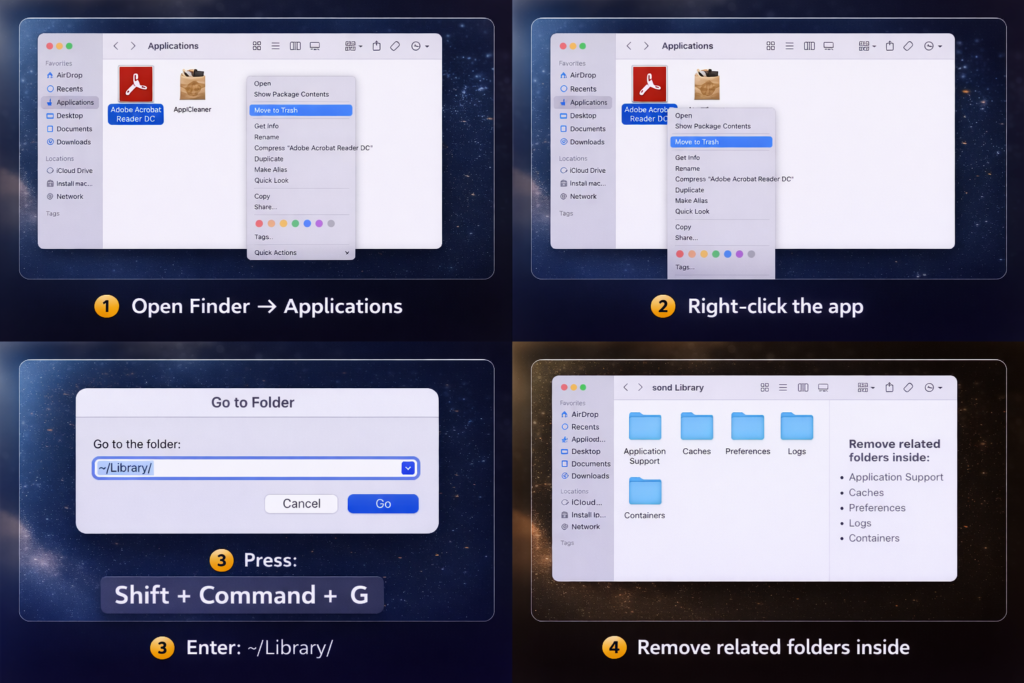
- Open Finder → Applications
- Right-click the app
- Select Move to Trash
- Empty Trash
⚠️ This removes only the main application file.
✅ Method 2: Completely Uninstall Apps on Mac by Removing Leftover Files
To fully uninstall apps on Mac:
Step 1
Open Finder
Step 2
Press:
Shift + Command + G
Step 3
Enter:
~/Library/
Check and remove related folders inside:
- Application Support
- Caches
- Preferences
- Logs
- Containers
Search using the app name carefully before deleting.
🔥 Method 3: Use Open-Source App Uninstaller Tools for Mac
If you don’t want to manually search Library folders, you can use open-source tools to uninstall apps on Mac completely.
Here are safe options:
🧹 1. AppCleaner (Free & Open Source)
Official: https://freemacsoft.net/appcleaner/
What it does:
- Removes the app
- Finds related support files
- Deletes cache & preference files
- Shows you everything before removal
Best for:
✔ Beginners
✔ Safe uninstall
✔ Quick cleanup
🧹 2. Pearcleaner (Open Source)
Pearcleaner is a lightweight open-source Mac app uninstaller available on GitHub.
Why it’s useful:
- Modern interface
- Removes leftover files
- Fully open source
- Lightweight
Great alternative if you prefer GitHub-based tools.
🧹 3. AppDelete (Older open-source version)
Note: Originally open source, legacy versions are available online.
What it does
- Removes apps
- Deletes associated files (Caches, Preferences)
Good for
- Classic Mac app cleanup
- People who want simple, old-style utility
🧹 4. Monolingual (Not a direct uninstaller, but helps)
Website: https://github.com/Avram/Monolingual
License: Open source
What it does
- Removes unnecessary language files from Mac apps
- Frees up space but does not remove apps themselves
Useful for
- Freeing space after uninstalling apps
🧹 5. Homebrew + Manual Cleanup Tools
Homebrew isn’t an uninstaller itself, but it makes installing and managing open-source cleanup tools easy.
Install Homebrew:
/bin/bash -c "$(curl -fsSL https://raw.githubusercontent.com/Homebrew/install/HEAD/install.sh)"
Then install utilities like:
📦 brew install gtkhash
Helps you analyze and delete leftover files by checksum.
📦 brew install grandperspective
Shows big files visually so you can spot old app data.
📊 Comparison Table
| Method | Removes Leftovers | Difficulty | Best For |
|---|---|---|---|
| Trash Only | ❌ No | Easy | Quick delete |
| Manual Library | ✅ Yes | Medium | Advanced users |
| AppCleaner | ✅ Yes | Easy | Most users |
| Pearcleaner | ✅ Yes | Easy | Open-source fans |
| Homebrew | ✅ Yes | Medium | Developers |
⚠️ What NOT to Do
❌ Don’t delete random files in System folder
❌ Don’t install sketchy “Mac cleaner” apps
❌ Don’t force delete system apps
⚠️ Common Mistakes When Uninstalling Apps on Mac
Many users make these mistakes:
- Deleting apps directly from Launchpad
- Forgetting to empty Trash
- Ignoring Login Items
- Leaving launch agents running
- Using random third-party cleaner apps
Always uninstall carefully to avoid breaking dependencies.
FAQs About Uninstalling Apps on Mac
Does moving apps to Trash uninstall them completely?
No. It removes the main app but leaves behind support files.
What is the safest way to uninstall apps on Mac?
Using a trusted open-source tool like AppCleaner is the safest option.
Where are leftover files stored on Mac?
Usually inside:
~/Library/Application Support
~/Library/Caches
~/Library/Preferences
Can uninstalling apps improve Mac performance?
Yes. Removing unused apps and leftover files can free storage and reduce background processes.
🏁 Conclusion
To completely uninstall apps on Mac, avoid simply dragging them to Trash. Whether you manually remove Library files or use open-source app uninstaller tools like AppCleaner or Pearcleaner, proper cleanup keeps your Mac fast and clutter-free.
If you want your Mac running smoothly, learning how to uninstall apps on Mac correctly is essential.
You can also explore our list of the best open source tools for Mac users to discover more powerful free utilities.
If screen recording apps are taking up storage, see our guide on how to record screen on Mac using built-in and free methods.