Need more screen space on your MacBook but don’t want to spend money on an expensive portable monitor?
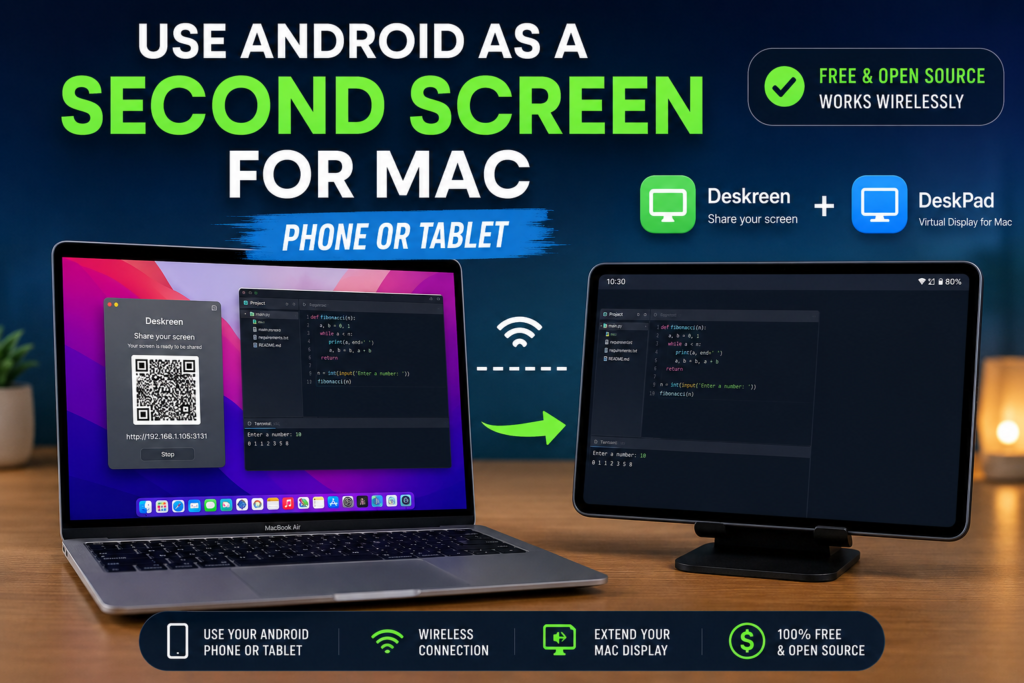
If you’re looking for the easiest way to use Android as a second screen for Mac, you’re in the right place. Many Mac users want extra screen space without purchasing an expensive monitor. Fortunately, you can use Android as a second screen for Mac using free tools like Deskreen and DeskPad. Whether you want to use Android as a second screen for Mac with a phone or tablet, this guide will walk you through every step.
If you own an Android phone or tablet, you already have a potential second display sitting right beside you.
Using free open-source tools like Deskreen and DeskPad, you can easily use Android as a second screen for Mac and significantly improve your productivity. Whether you’re a content creator, developer, student, trader, designer, or remote worker, having an additional display can make multitasking much easier.
The best part is that this solution works with both Android phones and Android tablets, requires no subscriptions, and can be set up in just a few minutes.
If you’re building the ultimate Android and macOS workflow, you may also want to check out our guide on Best Android File Transfer Apps for Mac:
Let’s get started.
Why Use Android as a Second Screen for Mac?
One of the biggest productivity upgrades you can make is adding a second display.
A second screen allows you to:
- Keep chat applications visible
- Monitor emails
- View documentation while coding
- Watch tutorials while working
- Manage social media dashboards
- Track analytics
- Reference research materials
- Improve multitasking
While dedicated portable monitors are great, they can cost thousands of rupees.
Your Android device can provide many of the same benefits at no additional cost.
Can You Really Use Android as a Second Screen for Mac?
Yes.
Many Mac users assume only iPads can function as secondary displays because of Apple’s Sidecar feature.
Fortunately, Android devices can achieve a very similar experience using third-party software.
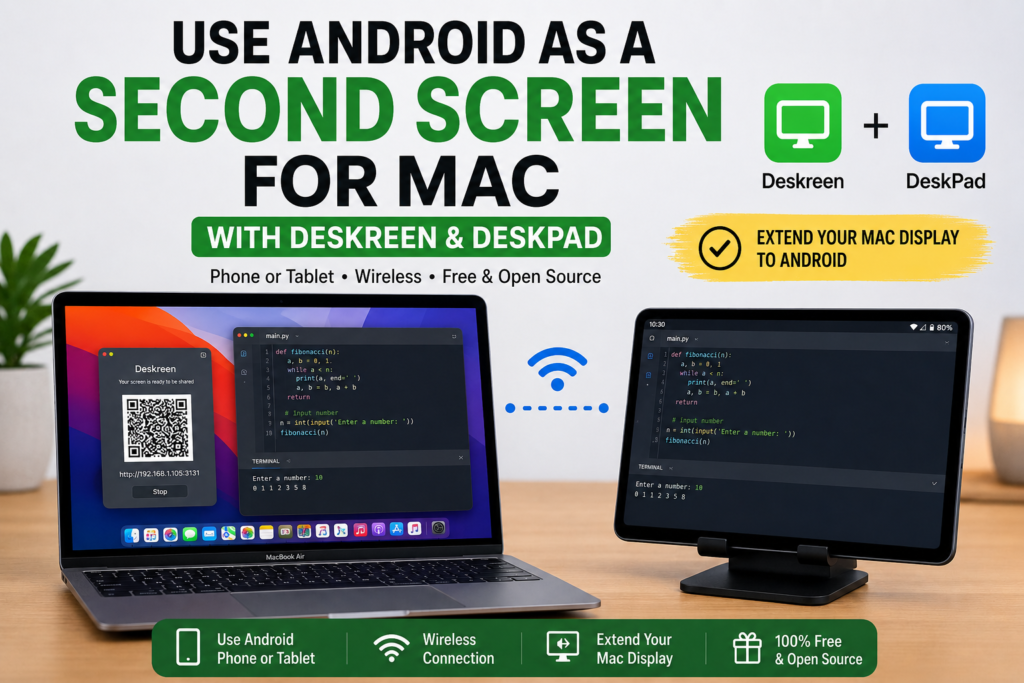
With DeskPad creating a virtual monitor and Deskreen streaming that monitor to your Android device, macOS treats your Android phone or tablet as a genuine extended display.
This means you can:
- Drag windows onto Android
- Move your mouse between screens
- Use separate applications
- Extend your workspace
- Increase productivity
This is much more useful than basic screen mirroring.
What Is Deskreen?
Deskreen is a free and open-source application that allows any device with a web browser to become a secondary screen.
GitHub:
https://github.com/pavlobu/deskreen
Deskreen Features
- Open source
- Completely free
- Browser-based
- Wireless connection
- Low latency WebRTC streaming
- Supports Android phones
- Supports Android tablets
- Supports macOS
Unlike many paid alternatives, Deskreen does not require subscriptions or accounts.
What Is DeskPad?
DeskPad creates virtual monitors on macOS.
GitHub:
https://github.com/Stengo/DeskPad
DeskPad Features
- Creates virtual displays
- Lightweight
- Free
- Open source
- Works alongside Deskreen
- Enables extended display mode
Without DeskPad, macOS does not have an extra monitor available for Deskreen to stream.
DeskPad solves this problem by creating a virtual monitor that macOS recognizes as a real display.
How Deskreen and DeskPad Work Together
The setup works like this:
Step 1
DeskPad creates a virtual monitor.
Step 2
macOS recognizes the virtual monitor.
Step 3
Deskreen detects the monitor.
Step 4
Deskreen streams the display over Wi-Fi.
Step 5
Your Android device receives the display.
Step 6
You now have a fully functional second screen.
The experience is surprisingly close to Apple’s Sidecar feature.
Android Phone vs Android Tablet as a Second Screen
Both devices work well.
However, each has different strengths.
Android Phone
Perfect for:
- WhatsApp Web
- Slack
- Discord
- Spotify
- Calendar
- ChatGPT
- Notes
Even older Android phones can be repurposed into useful productivity displays.
If you frequently share your Android display with your Mac, you may also enjoy our guide on:
Android Tablet
Perfect for:
- Research
- Coding documentation
- Browsers
- Video editing assets
- Analytics dashboards
- Design references
A tablet feels much closer to a traditional monitor and is generally the better option.
System Requirements
Mac Requirements
- macOS Monterey or newer
- Stable Wi-Fi connection
- Administrator access
Android Requirements
- Android 8.0 or newer
- Chrome or modern browser
- Same Wi-Fi network as Mac
How to Use Android as a Second Screen for Mac
Step 1: Install DeskPad
Download DeskPad from GitHub.
Install the application and launch it.
Create a virtual monitor.
To confirm it is working:
System Settings → Displays
You should now see an additional monitor.
Step 2: Configure Display Position
Inside macOS Display Settings:
Arrange the monitor:
- Right
- Left
- Above
- Below
Most users prefer placing it on the right side.
Step 3: Install Deskreen
Download Deskreen from GitHub.
Launch the application.
You will see:
- QR code
- Local network URL
Keep this screen open.
Step 4: Connect Your Android Device
Open Chrome on Android.
Scan the QR code.
Or enter the local URL manually.
The device should connect immediately.
Step 5: Approve the Connection
Deskreen will display a confirmation request.
Click Allow.
Step 6: Select the Virtual Display
Choose:
Entire Screen
Select the virtual monitor created by DeskPad.
Do not select your primary Mac display.
Step 7: Start Using Android as a Second Monitor
The display should now appear on Android.
You can drag windows to the Android screen exactly as you would with a physical monitor.
Congratulations.
You are now successfully using Android as a second screen for Mac.
Best Productivity Uses for Android as a Second Screen
Content Writing
Keep research tabs on Android while writing on Mac.
Content creators may also enjoy our article on:
Best Android Apps for Mac Users
Programming
Place documentation, GitHub repositories, and Stack Overflow on the Android display.
Video Editing
Keep assets and references visible while editing.
Social Media Management
Monitor messages and analytics without cluttering your main display.
Stock Trading
Track charts and market data on Android while executing trades on Mac.
Performance Optimization Tips
For the smoothest experience:
Use 5GHz Wi-Fi
This reduces latency and improves responsiveness.
Stay Close to the Router
Signal quality directly impacts performance.
Lower Display Resolution
Useful on slower networks.
Close Unnecessary Applications
Reduces CPU usage.
Keep Software Updated
Always install the latest versions.
Common Problems and Fixes
Android Device Not Connecting
Check:
- Same Wi-Fi network
- Browser compatibility
- Firewall settings
- VPN interference
Black Screen
Usually caused by:
- Wrong monitor selected
- DeskPad not running
Restart both applications.
High Latency
Try:
- Switching to 5GHz Wi-Fi
- Moving closer to router
- Reducing display resolution
Cursor Won’t Move to Android Screen
Adjust display arrangement inside macOS settings.
Deskreen vs Duet Display
| Feature | Deskreen | Duet Display |
|---|---|---|
| Free | Yes | No |
| Open Source | Yes | No |
| Subscription Required | No | Yes |
| Android Support | Yes | Yes |
| Wireless Support | Yes | Yes |
| Community Driven | Yes | No |
Looking for additional Android-Mac tools?
Why This Is One of the Best Free Mac Productivity Hacks
Most people already own an Android device.
Instead of spending money on another display, you can repurpose hardware you already have.
This setup is especially useful for:
- Students
- Digital nomads
- Bloggers
- Developers
- Remote workers
- Entrepreneurs
- Content creators
For occasional productivity needs, Deskreen and DeskPad provide exceptional value.
Final Verdict
If you’re searching for the easiest way to use Android as a second screen for Mac, the combination of Deskreen and DeskPad is currently one of the best free solutions available.
After testing multiple solutions, we found that the most reliable way to use Android as a second screen for Mac is by combining DeskPad and Deskreen. This setup allows you to use Android as a second screen for Mac wirelessly while maintaining excellent performance. Whether you want to use Android as a second screen for Mac using a Samsung phone, Google Pixel, OnePlus device, or Android tablet, the process remains largely the same.
DeskPad creates a virtual monitor that macOS treats as a physical display, while Deskreen streams that monitor to your Android phone or tablet through your browser.
The setup is:
- Free
- Open source
- Wireless
- Easy to configure
- Compatible with Android phones
- Compatible with Android tablets
Whether you’re writing content, coding applications, editing videos, managing social media, or simply looking for more workspace, this setup can dramatically improve your productivity without costing anything.
Frequently Asked Questions
Can I use an Android phone as a second screen for Mac?
Yes. Deskreen and DeskPad allow Android phones to function as secondary displays for macOS.
Can I use an Android tablet as a second monitor?
Yes. Tablets generally provide the best experience because of their larger screens.
Is Deskreen free?
Yes. Deskreen is completely free and open source.
Is DeskPad free?
Yes. DeskPad is also free and open source.
Does this work wirelessly?
Yes. Both devices only need to be connected to the same Wi-Fi network.
Is this better than a portable monitor?
For occasional use and travel, yes. For professional daily use, a dedicated monitor may still provide the best experience.